0
    0
    Your Cart
    Your cart is emptyReturn to Shop
      Calculate Shipping

      Call us: +91-8160159928

      Free shipping on all orders over ₹ 2999

      Dell Laptop Screen Replacement: 12 Critical Safety Tips

      Dell Laptop Screen Replacement: 12 Critical Safety Tips | mylaptopscreen.com
      mylaptopscreen.com

      Dell Laptop Screen Replacement:
      12 Critical Safety Tips You Must Follow

      A professional guide from the screen replacement specialists

      🕐 9 min read 📋 ~2,200 words 🎯 Dell Repair Guide ✅ 2025 Edition
      Dell laptop screen replacement workspace with tools and replacement screen
      Replacing a Dell laptop screen safely requires the right preparation, tools, and technique — this guide covers everything you need to know.

      Cracked, flickering, or dead screens are among the most common Dell laptop repairs — and the good news is that many users can successfully replace them at home. But without the right precautions, a DIY screen swap can quickly turn a £120 repair into a £600 motherboard replacement.

      At mylaptopscreen.com, we have shipped hundreds of thousands of Dell replacement screens to technicians and DIY enthusiasts worldwide. This guide compiles the most important safety tips our support team shares with customers every single day.

      ⚠ Why This Matters
      Electrostatic discharge (ESD) alone is responsible for an estimated 30% of all preventable hardware failures during screen replacements. Follow these 12 tips and you protect not just your screen — but your entire laptop.
      1
      Power Down Completely — Not Just Sleep
      Laptop showing full shutdown process before screen replacement
      Always perform a full OS shutdown, unplug the power adapter from the wall, and wait 60 seconds before touching any hardware components.

      This is the single most violated rule. Pressing the power button until the screen goes black is not enough. You must:

      • Shut down via the operating system (Start → Shut Down)
      • Wait a full 60 seconds after shutdown before touching any hardware
      • Unplug the power adapter from the wall — not just from the laptop
      • Remove the battery if your Dell model has a removable one

      Why it matters: Modern Dell laptops — including the XPS, Inspiron, and Latitude series — use capacitors that retain charge for up to 30 seconds after shutdown. Even a residual charge of 5V can damage sensitive LCD ribbon cables.

      2
      Ground Yourself with an Anti-Static Wrist Strap
      Anti-static ESD wrist strap for electronics repair
      An ESD wrist strap is the single most cost-effective protection against electrostatic damage to laptop display components — costing less than £5.

      Your body carries a static charge that is completely invisible and absolutely lethal to electronics. The human body can hold charges of 10,000–35,000 volts — far above the 100–200V threshold that destroys laptop display controllers.

      • Wear an ESD wrist strap connected to a grounded surface throughout the entire repair
      • If no strap is available, regularly touch an unpainted metal surface on a grounded appliance
      • Never work on carpet or in low-humidity environments without ESD protection
      💡 Pro Tip from Our Workshop
      Anti-static wrist straps cost less than £5. Replacing a damaged Dell Inspiron 15 display controller costs over £200. The math is simple.
      3
      Use the Right Tools — Not a Kitchen Knife
      Precision screwdriver and spudger toolkit for laptop repair
      A proper repair toolkit — plastic spudgers, precision JIS screwdrivers, and non-magnetic tweezers — is essential for damage-free laptop disassembly.

      Using inappropriate tools is the number-one cause of cosmetic damage during screen replacements. A standard flathead screwdriver will snap Dell bezel clips on first contact. You need:

      • Plastic spudger or pry tool — for opening bezels without scratching
      • Plastic opening picks — for running along the bezel seam
      • JIS/Phillips #00 and #0 precision screwdrivers — Dell uses very small screws
      • Non-magnetic, non-conductive tweezers — for handling connectors
      • Microfibre cloth — to lay the screen face-down without scratching

      Avoid any metal pry tools near the display panel itself. Dell IPS and OLED screens are extremely fragile at the edges and can crack from as little as 2kg of lateral force.

      4
      Photograph Everything Before You Disconnect Anything
      Photographing laptop cable routing before disassembly
      Take multiple photos of cable routing, screw positions, and bezel clip positions before disassembly begins — these images are invaluable during reassembly.

      Before removing a single cable, take photos of:

      • The routing path of every ribbon cable
      • The screw hole locations and screw sizes
      • How the bezel clips seat into the lid chassis
      • Any tape or adhesive strips that secure cables

      Use your smartphone and take at least 3 angles per area. These photos will save you hours of confusion during reassembly, especially on Dell XPS models where cable routing is particularly dense.

      5
      Handle the Replacement Screen by Its Edges Only

      Your replacement screen from mylaptopscreen.com arrives factory-sealed, but mishandling it before installation can cause pressure damage and dead pixels. Always:

      • Hold the screen only by its metal frame — never touch the glass surface directly
      • Lay it face-up on a clean, flat, non-abrasive surface
      • Keep it away from magnets, speakers, and heat sources during installation
      • Never apply pressure to the back of the panel — this creates visible pressure spots
      ⚠ Static Bag Warning
      Keep the screen in its anti-static bag until the exact moment you are ready to install it. Leaving it exposed on a desk for even 20 minutes in a dry environment risks ESD damage to the panel electronics.
      6
      Know Your Dell Model’s Exact Screen Connector Type

      Dell uses at least four different connector types across its product lines: 30-pin eDP, 40-pin eDP, LVDS (legacy), and proprietary connectors on some XPS models. Installing the wrong screen will result in no display output even if it physically fits.

      To confirm your connector type:

      • Check your Dell service tag at dell.com/support to see the exact original display specification
      • Photograph your existing connector before ordering a replacement
      • At mylaptopscreen.com, enter your exact model number — our compatibility engine filters only confirmed-compatible replacements
      7
      Never Force a Ribbon Cable Connector
      Laptop ZIF ribbon cable connector handling
      ZIF ribbon cable connectors require near-zero insertion force. If you feel any resistance, stop immediately and check the locking tab is fully open.

      Dell screen ribbon cables use ZIF (Zero Insertion Force) connectors — they are designed to connect with almost no physical pressure. If you are forcing a connector, something is wrong:

      • Check that the locking tab (the small plastic bar) is fully flipped open
      • Ensure the cable is perfectly straight and not kinked
      • Never use tools to push a ribbon cable — use only clean fingertips
      🛑 Critical Warning
      A torn or kinked ribbon cable will render the screen completely non-functional and the damage is irreversible. This is the most common DIY mistake our support team encounters.
      8
      Work in a Clean, Well-Lit Environment

      Dust particles, pet hair, and debris introduced between the screen layers are visible as dark spots after reassembly and cannot be removed without full disassembly. Before starting:

      • Wipe down your work surface with a lint-free cloth
      • Work under strong, direct lighting — shadows hide loose connectors and misaligned clips
      • Keep pets and children out of the workspace
      • Avoid eating or drinking near the repair area — liquid contamination on display connectors is permanent
      9
      Organise Screws by Location Immediately
      Magnetic screw mat organising laptop screws by location
      A magnetic screw mat keeps every screw in its correct position, preventing cross-threading and chassis damage during Dell laptop reassembly.

      Dell laptops often use 3–4 different screw sizes in the same chassis. Mixing them during reassembly can strip threads, crack plastics, or prevent the lid from closing properly.

      • Place a piece of white paper on your work surface and lay screws in the position they came from
      • Label each group: “Hinge left — M2 x 4mm”
      • Magnetic screw mats are an excellent investment for regular DIY repairs
      • Never put screws in a single pile or container — they will inevitably mix
      10
      Test the Screen Before Fully Reassembling
      Testing replacement laptop screen before bezel reassembly
      Power-on testing before clipping the bezel back saves 15–20 minutes of rework if any issue is discovered with the replacement screen.

      This is the most time-saving tip of all. After connecting the replacement screen but before clipping the bezel:

      • Reconnect power and boot the laptop
      • Check for full image across the entire panel — no dead rows, no backlight bleed, no colour banding
      • Test brightness controls via the function keys
      • Check the screen at multiple angles for IPS glow
      ✅ mylaptopscreen.com Guarantee
      All screens purchased from mylaptopscreen.com include a dead-pixel warranty and are tested before dispatch. If your screen fails the power-on test, contact us immediately for a fast replacement at no cost.
      11
      Re-seat the Screen Multiple Times Before Clipping the Bezel

      One of the most common post-repair complaints is a screen that does not sit flush in the lid, creating visible gaps or pressure points. Before pressing the bezel clips:

      • Lay the screen into the lid cavity and check all four edges align evenly
      • Start bezel clips from the bottom centre and work outward
      • Never start with corners — corners are the last thing to clip
      • Listen for each clip to “click” — a silent or mushy press means the clip is not seated
      12
      Dispose of Your Old Screen Responsibly
      Electronics recycling centre for laptop screen WEEE disposal
      LCD and OLED screens contain hazardous materials and must be taken to an authorised WEEE recycling point — never disposed of in general household waste.

      LCD and OLED screens contain hazardous materials including mercury (in CCFL backlights on older Dell models) and various heavy metals. Improper disposal is illegal in most countries.

      • Take the screen to your local WEEE (Waste Electrical and Electronic Equipment) recycling point
      • Many councils and electronics retailers offer free screen recycling
      • Do not dispose of screens in general household waste

      Summary: Your Pre-Repair Safety Checklist

      Before you start any Dell screen replacement, run through these essentials:

      1. Full OS shutdown + 60-second wait + unplugged from wall
      2. ESD wrist strap on and grounded
      3. Plastic pry tools and precision screwdrivers ready
      4. Camera out — photos taken before any disconnection
      5. Correct replacement screen confirmed via Dell service tag
      6. Clean, well-lit workspace prepared
      7. Screw organisation system in place
      8. Power-on test planned before bezel reassembly

      Ready to Order Your Replacement Dell Screen?

      mylaptopscreen.com stocks over 50,000 compatible Dell laptop screens for every model from the Inspiron 3000 series to the XPS 17 OLED. Our compatibility guarantee means if the screen is listed for your model, it will fit — or we replace it free of charge.

      Find My Dell Screen →
      Leave a Reply

      Your email address will not be published. Required fields are marked *

      Free shipping India

      On all orders above Rs.2999

      Easy 10 days returns

      10 days money back guarantee

      National Warranty

      Offered in India only

      100% Secure Checkout

      PayPal / MasterCard / Visa

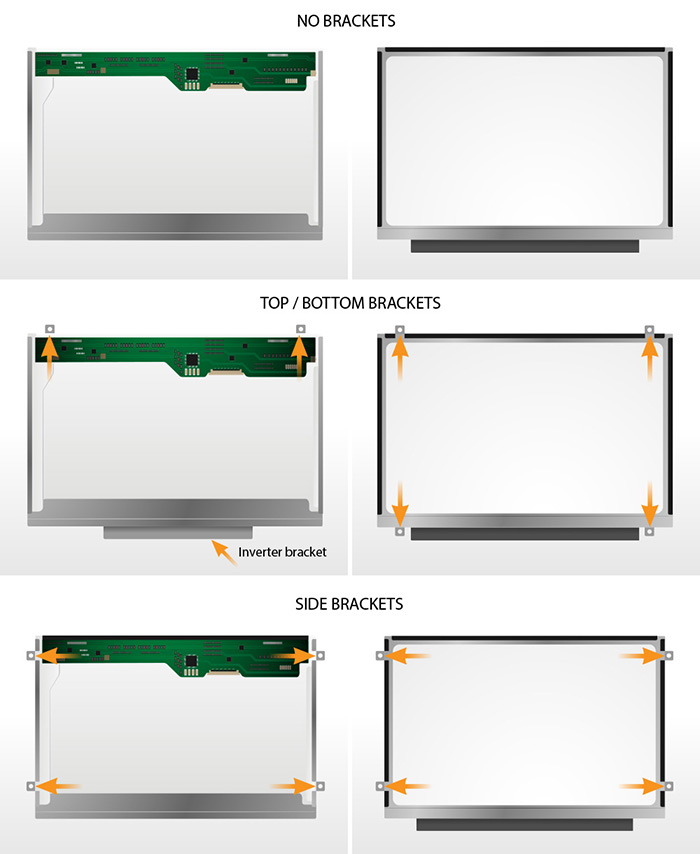
      LCD Mounting and LCD brackets

      Typical LCDs are mounted with 2, 3 or 4 screws on the left and the right side of the LCD.

      Some LCDs are mounted via built-in brackets.

      Important! All product images match the exact bracket configuration of a replacement screen that will be sent to you. LCD brackets are built onto the LCD module – don’t confuse them with the LCD mounting brackets that are part of a laptop and should be unscrewed from the LCD and reused during the reinstallation process.

      Examples of LCD mountings:

      lcd mounts on laptop screen

      Screen connector

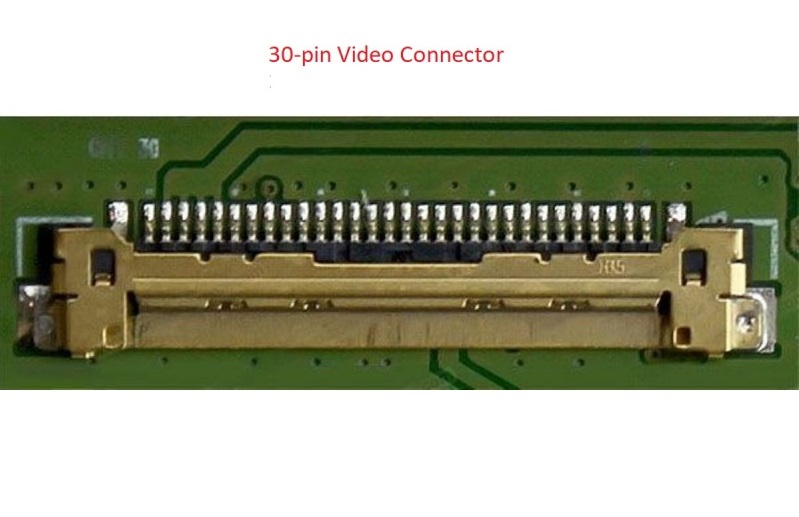
      There are several different types of video connectors used in laptops screens. For the most part the connectors are not interchangeable. Here are the most common types of video connectors that are in use today:

      30-pin-lcd-screen-connector-mylaptospcreen.com

      30-pin eDP – the main modern connector.
      It is used on screens with resolutions up to 1920 x 1080. If your laptop was manufactured after 2014 and features screen resolution up to 1080p it is likely using this type of connector.

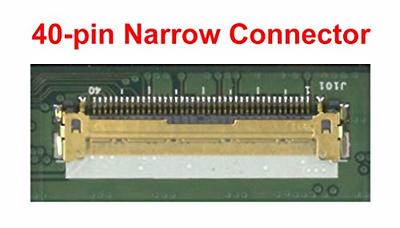
      40-pin-narrow-connector-laptop-screen-
      40-pin Narrow Connector
      40-pin touch interface and eDP video connector used on some Lenovo laptops starting from 2020.

      Narrow 40pin – pitch 0.4mm (found in Lenovo OnCell touch)
      Regular 40pin – pitch 0.5mm
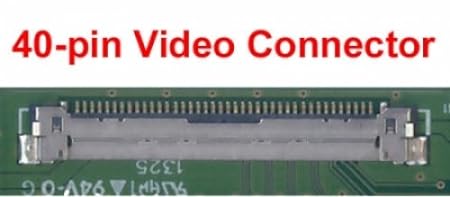
      40-pin-connector

      40-pin same physical connector standard but 3 different and incompatible signals

      40-pin eDP Touch – used on newer laptops after 2015, the additional pins over the 30-pin eDP connector are needed for a built-in (on-cell) touchscreen functionality.

      40-pin eDP QHD+ – used on newer laptops after 2015, the additional pins over the 30-pin eDP connector are needed for higher resolution options such as QHD (2560 x 1440) and even higher (4 channel eDP).

      “40-pin eDP Touch” LCDs are not interchangeable with “40-pin eDP QHD+” screens. Even though the connectors are the same, plugging a “40-pin eDP Touch” LCD in-place of a “40-pin eDP QHD+” screen will not provide the touch functionality, and vice-versa, plugging a QHD screen in place of a 40-pin touchscreen will not provide higher resolution.

      40-pin LVDS (old)

      Used on most LED back-lit laptops prior to 2014. It was the most common standard at the time and allowed resolutions up to 1920 x 1080p.
      Screens fitted with 40-pin LVDS connector are not interchangeable with screens fitted with 40-pin eDP because of the two different signalling technologies, even-though the connectors follow identical physical standards.


      Other

      120Hz+ LVDS (gaming) screens used a 50-pin connector
      CCFL screens (obsolete) used 20-pin LVDS and 30-pin LVDS connectors.
      MacBooks use their own proprietary LVDS and eDP connector types.

      How to find screen resolution

      It is important to confirm the screen resolution before submitting an order: the same laptop model can come with different display resolutions.

      how to find laptop screen resolution

      If a laptop you are ordering a screen for works – turn it on and:

      – go to On-line Resolution Check

      OR

      – for Windows XP, Windows 2000, Windows ME, Windows 98: Right-Click on Desktop -> Properties -> then in Display Properties navigate to Settings
      – for Windows 10 and Windows 7 & Vista: Right-Click on Desktop -> Personalize -> Graphics Options

      If a laptop you ordering a screen for is not functional:

      – we recommend to pull your defective screen out and google screen model for specifications. You can find the screen model number on the sticker on the back of the screen. Check out our How to check your LCD screen model number article.

      OR

      – check your laptop manual under the laptop specifications section if you have one.

      OR

      – also you may be able to find you laptop specifications on manufacturers website using the laptop serial number, service tag or the model number (in Support section).

      Letters on the right are the common abbreviations and can be used as resolution indicators.

      3840 x 2160 (UHD) 4K
      3200 x 1800 (QHD+)
      3000 x 2000 (PixelSense, MS Only)
      2880×1800 (Retina, Apple only)
      2560×1600 (Retina, Apple only)
      2560 x 1440 (QHD / WQHD) 2K
      2304 × 1440 (Retina, Apple only)
      2048 x 1536 (QXGA)
      1920 x 1200 (WUXGA)
      1920 x 1080 (WUXGA) Full HD
      1680 x 1050 (WSXGA+)
      1680 x 945 (WSXGA+)
      1680 x 900 (WSXGA+)
      1600 x 900 (WXGA++) HD+
      1600 x 1200 (UXGA)
      1440 x 960 (WXGA+)
      1440 x 900 (WXGA+)
      1400 x 1050 (SXGA)
      1366 x 768 (WXGA) HD
      1280 x 1024 (SXGA)
      1280 x 720 (SD+)
      1280 x 854 (WXGA)
      1280 x 800 (WXGA)
      1280 x 768 (WXGA)
      1152 x 768 (WXGA)
      1024 x 768 (XGA, outdated)
      1024 x 600 (WSVGA, outdated)
      1024 x 576 (WSVGA, outdated)
      800 x 600 (SVGA, outdated)
      640 x 480 (VGA, outdated)

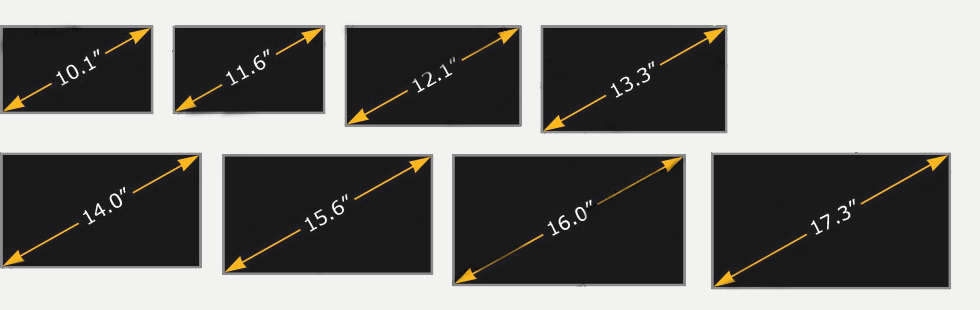
      How to measure laptop screen size

      laptop screen size how to check

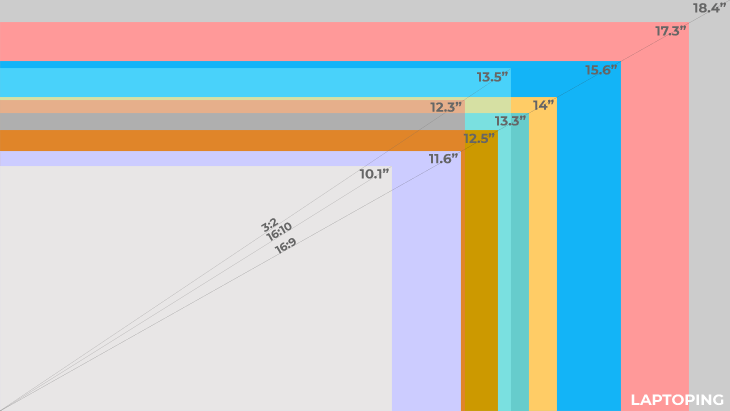
      Laptop screens vary in size and new sizes are frequently introduced. See the most common sizes below. Screen size is measured in inches, diagonally from corner to corner (1 inch=2.54 cm) as shown in the video below: